 Cenith Scan
Book scanning
How to Scan a Book to PDF on iPhone
From lining up the spine to checking page order and choosing PDF quality.
Book scanner app · On-device AI
Turn an open book into a PDF on your iPhone. Cenith Scan splits two-page spreads, flattens curved pages and clears fingers from the margins, with AI that runs on your phone.
Download Cenith Scan on the App Store for iPhone (iOS 18 or later). Android to follow.
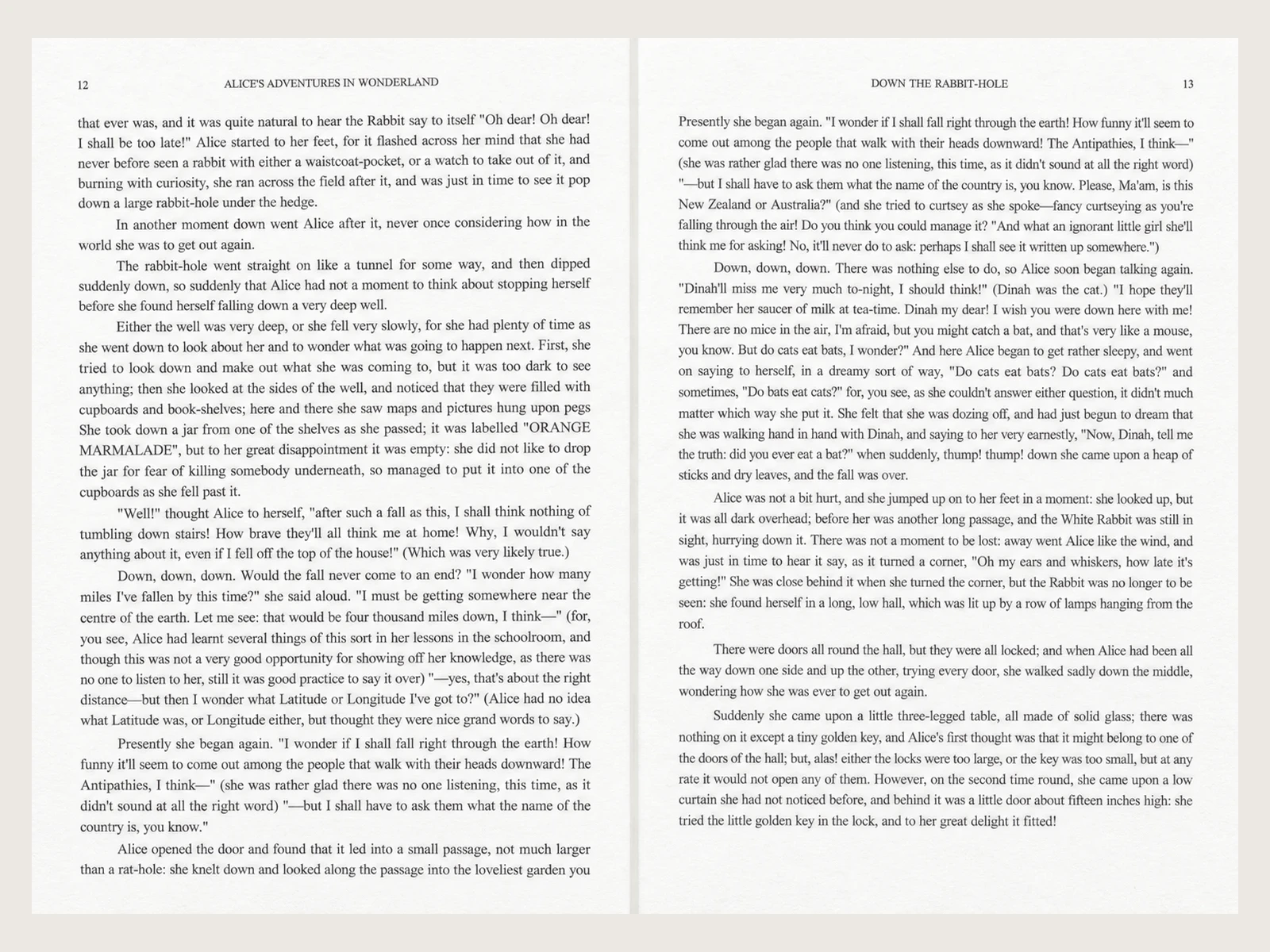
Built for bound pages
Book pages curve into the spine. Straightening the four corners alone cannot straighten the text inside the page.
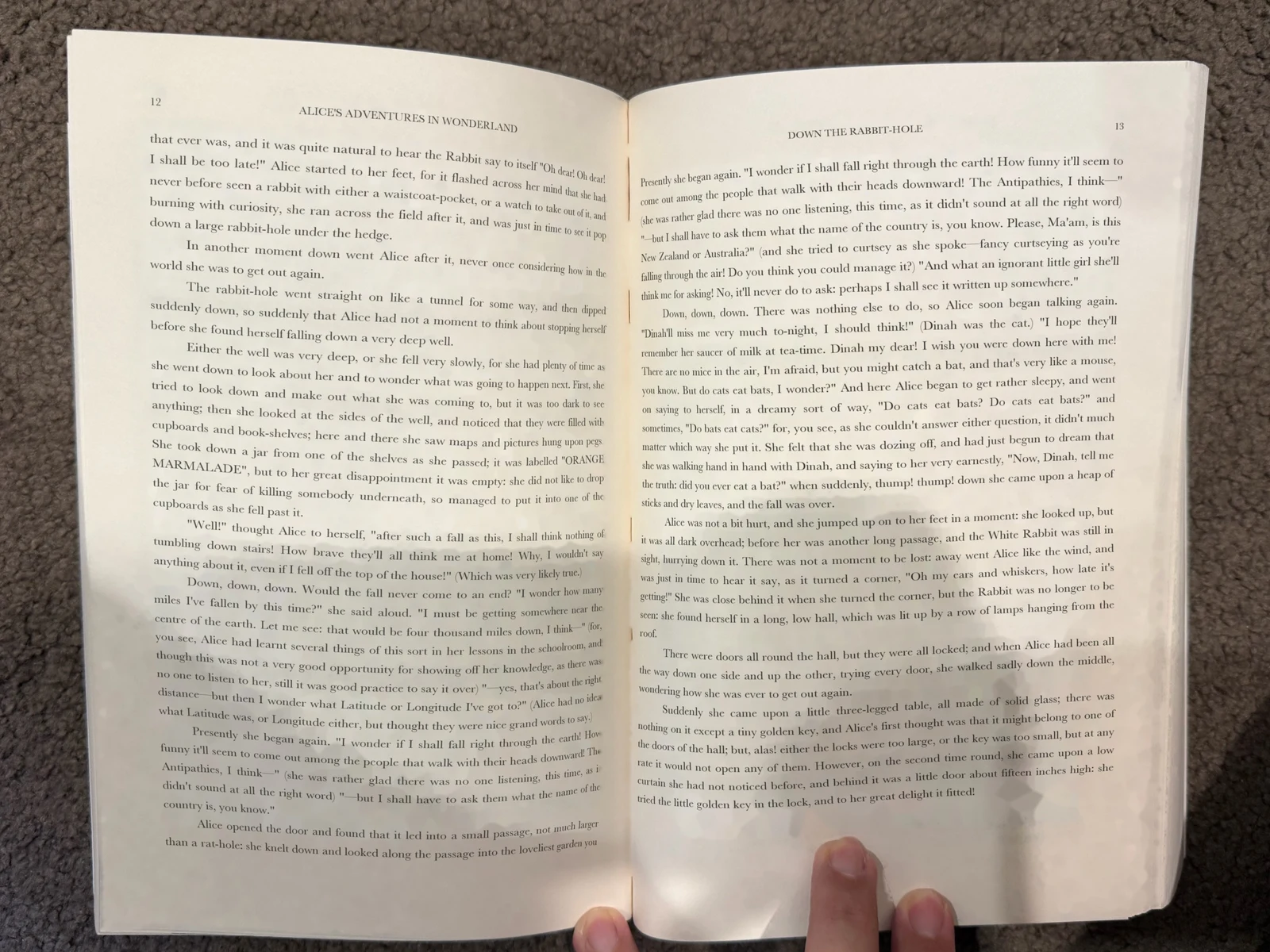
The example used in our app preview: a real book photo with the print replaced by public-domain text before processing. Paper shape, lighting and fingers are retained. Results depend on the photo.
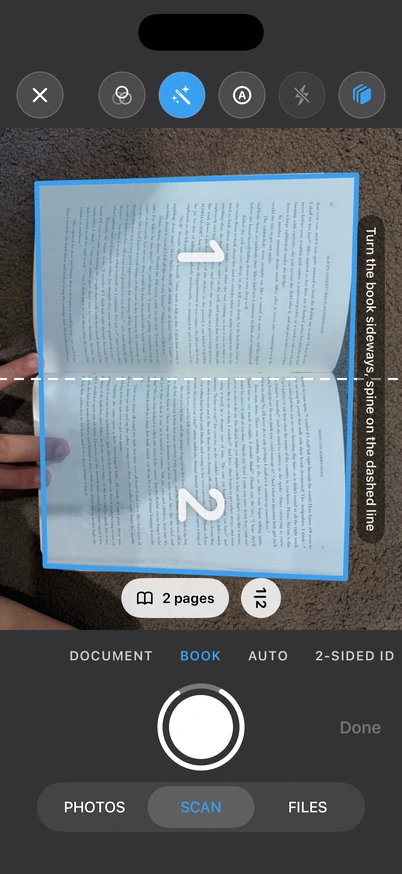
Capture a spread and split it at the spine in reading order. Switch to one page for a thick book, or use Cover for the cover’s original colours.
On-device AI Enhancement flattens page curves and evens out the lighting. Review the result and adjust the crop when needed.
Turn on Finger Removal when you need it. Keep your fingers away from text: words hidden behind a finger cannot be recovered from the photo.
Capture, check, export
Choose BOOK, turn the book sideways with its top towards the phone’s right, and align the spine with the dashed guide. Auto capture takes a photo once the page is still.
Check small print near the spine, page order and the crop. English, Japanese and Chinese OCR lets you search your scans inside the app.
Export a multi-page PDF or JPEGs. Pro adds searchable PDFs, copying recognised text, and Word or .txt exports.
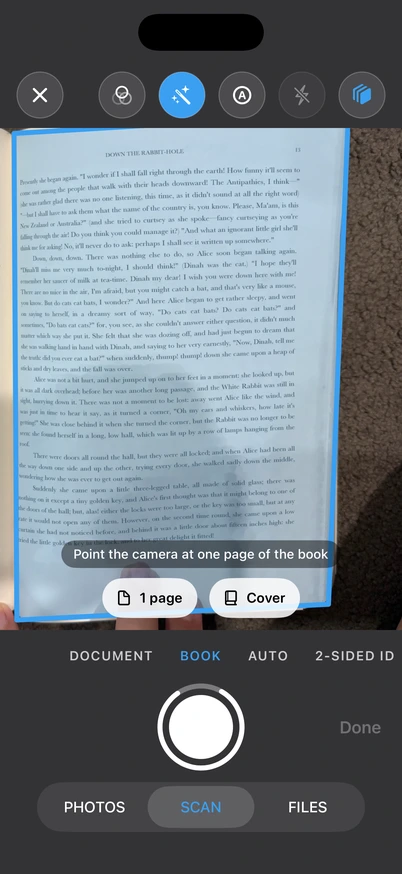
Choose your output
Scanning, in-app OCR and search, drawing and signing are free. Standard-quality PDFs at 75 dpi are unlimited and intended for reading on screen. Each month includes 5 high-quality exports at the scan’s full resolution and 5 uses of advanced AI features, such as Finger Removal.
Cenith Scan Pro makes high-quality exports and advanced AI use unlimited, and adds searchable PDFs, Copy Text, Word and .txt exports. Pro is available by subscription or one-time purchase. See the current feature and plan details.
Capture textbook chapters, reference pages or a few pages of notes. Review your scans, search their text and save a PDF for reading later.
Page processing and OCR happen on your device. Your own device backups and any exports you share are separate choices. Read the guide to offline scanning and backups or the privacy policy.
Scanning guides
Book scanning
From lining up the spine to checking page order and choosing PDF quality.
Better scan quality
Improve curved text, dark gutters and page edges, with before-and-after examples.
On-device privacy
Understand offline scanning, local OCR, sharing and your own device backups.