 Cenith Scan
On-device privacy
How to Scan Documents Without Uploading Them
Understand offline scanning, local OCR, sharing and your own device backups.
Download Cenith Scan on the App Store for iPhone (iOS 18 or later). Android to follow.
Scanning offline means that capturing and processing a document can happen without an internet connection. Keeping a document off a server also depends on where the app stores it, whether your phone backs it up, and what you choose when exporting it.
These are separate steps. This guide explains how Cenith Scan handles each one, and what to check if you want to keep a particular document on your device.
What runs on the phone?
Cenith Scan runs page detection, AI page flattening, lighting correction, Finger Removal, text recognition and search on your phone. No photo, scanned page or recognised text is uploaded to Cenith for those operations. You do not need a Cenith account.
This lets you capture a document, check the page and search its recognised text while offline. In-app OCR and search support English, Japanese, Simplified Chinese and Traditional Chinese. Pro adds searchable PDF export, Word and .txt export, and copying recognised text.
A practical offline scanning workflow
- Install the app before going offline. Download Cenith Scan from the App Store while connected. App purchases also need an internet connection.
- Turn off network connections for your check. Airplane mode may leave Wi-Fi enabled, so check Wi-Fi separately if you want to test without a connection.
- Capture a non-sensitive test page. Review the crop and AI Enhancement, then search for a word from the page in your library.
- Save an export locally. On iPhone, choose a location under On My iPhone in Files rather than an iCloud Drive or another cloud-provider folder.
- Open the exported file. Check that it is readable. If you enabled searchable text with Pro, try finding a word in a PDF reader that supports text search.
This is a useful functional check that the workflow works offline. It does not establish what another app or a device backup may do later when the phone reconnects.
Understand scanning, backups and sharing
- Processing
- The app turns the photo into a scan and recognises its text on your device. Cenith does not receive your pages for processing.
- Device backups
- The app’s documents are included in device backups according to your own settings. On iPhone, that can include iCloud Backup or a computer backup. Offline processing does not turn those backups off.
- Exporting and sharing
- You choose the destination. Saving to a cloud folder, sending an email or sharing to another service can send a copy outside your phone. That destination has its own privacy settings.
If a document must remain on the device, review your device-backup settings as well as where you save exports. Cenith does not hold a recovery copy of your library, so choose a backup arrangement that also protects you against losing the phone.
Control access to your library
You can enable the app lock in Settings. On iPhone, the operating system handles Face ID or Touch ID, with the device passcode as a fallback. You can also touch and hold a folder and choose Set Password; documents in that folder stay out of search until it is unlocked.
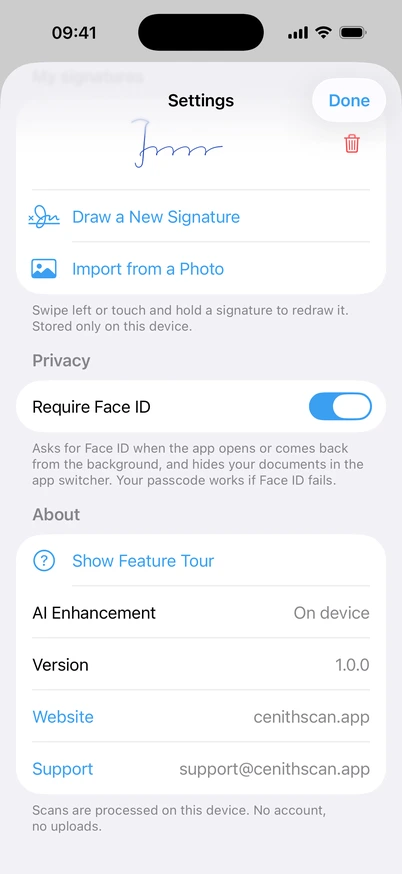
A lock controls access inside the app. It does not retract a copy that you already exported to another app or cloud service. Before sharing, check the exported file and its destination.
What if you only need to scan a book?
The same on-device processing applies to BOOK mode. You can capture a spread, flatten its curved pages and save a PDF without uploading the source photos. Follow the iPhone book-scanning guide for the capture steps, or see how to improve curved book pages.